Admin Operating Guide
The simpleAR Pro IT Operating Guide is designed to help an IT or Systems Administrator manage Organizations, User Accounts, Apps, and Analytics for simpleAR Pro-built applications.
Admins
If you're an IT admin and need access to the simpleAR Pro Admin Portal, please reach out to info@simplear.io
Managing Organizations
If the simpleAR Pro Application is being deployed in an on-prem/self-hosted environment, one or more Organizations can be added by a simpleAR Pro Admin. Organizations setup for simpleAR Pro can host one or many apps developed with simpleAR Pro. Users added to an Organization can be entitled to access one or multiple applications.
Via the simpleAR Pro Admin Portal site home page, go to the Organization tab to view the active Organizations setup for simpleAR Pro.
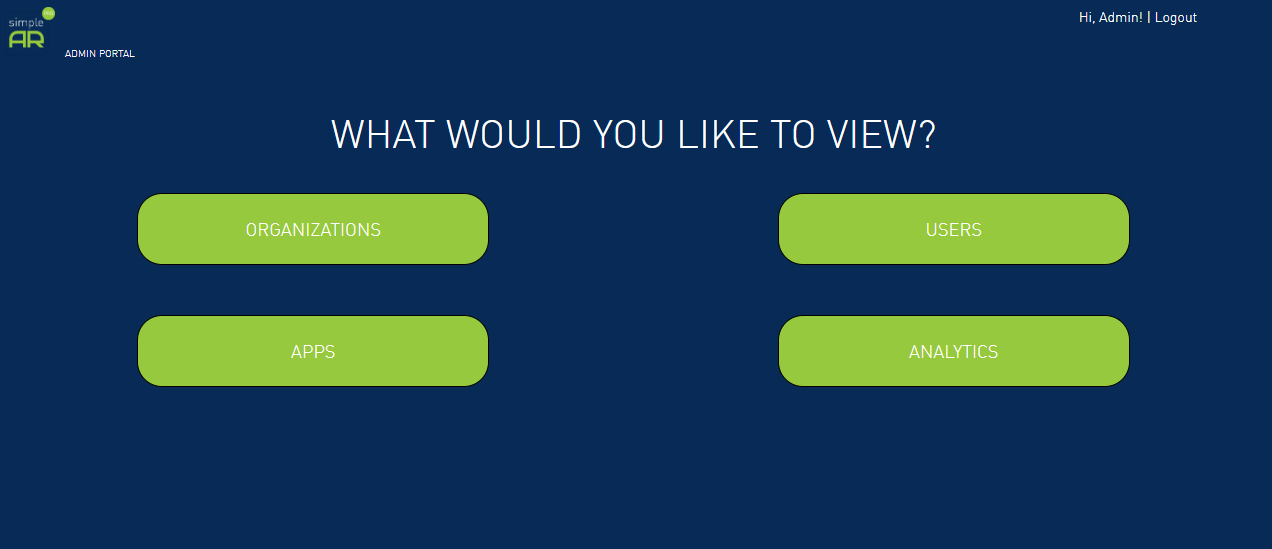
Add a New Organization
- From the Organization tab, select the Add Organization button
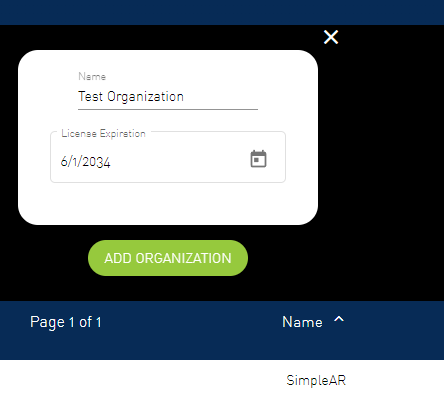
- Input the Organization Name and a Desired Expiration for the term the Organization will be licensed
License Expiration
For on-prem / self-hosted deployments: if the License expiration date has lapsed for an Organization, account access for Users added to those Organizations will be disabled.
Update or Remove an Existing Organization
- To Edit an existing Organization, Select the Edit button
- In Edit mode, update the Organization Name or License Period
- To Remove an existing Organization, Select the Delete button
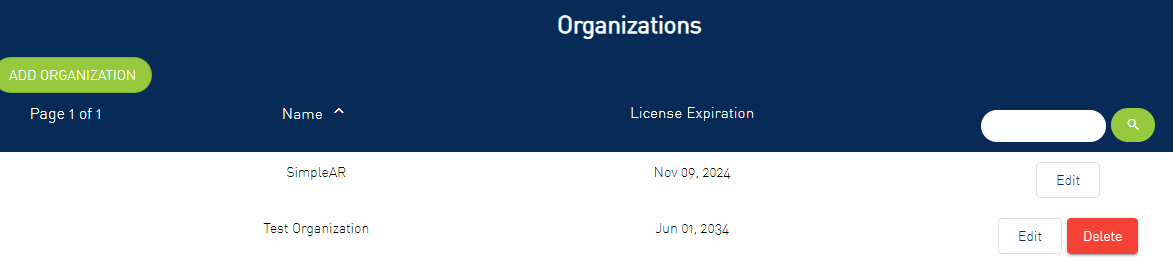
Deleting Organizations
For on-prem / self-hosted deployments: Deleting an Organization will Delete all associated Users, Analytics Data, and Applications assoociated with the Organization.
Managing Applications
An Organization can manage one or many Applications built with simpleAR Pro. A User can access one or many Applications depending on their entitlements set in the simpleAR Pro App Manager.
Adding a New Application
Applications are automatically registered with a Name and BundleID from the App Manager when a simpleAR Developer first configures the application. IT Admins do not need to add new Applications via the Admin Portal.
Updating or Removing an Application
- To Edit an existing Application, Select the Edit button
- In Edit mode, update the Application Name or BundleID
- To Remove an existing Application, Select the Delete button
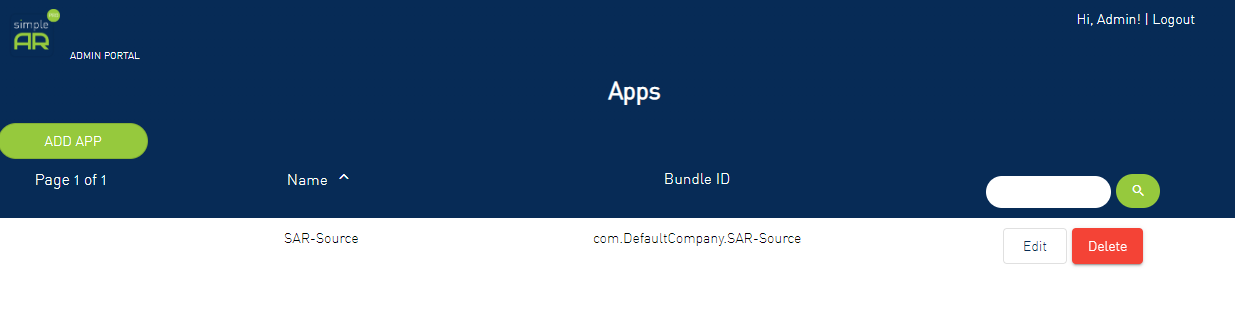
Deleting and Editing Applications
Deleting an Application will Delete all associated Analytics Data, and Modules associated with the Application. It's not recommended to Edit the Application from the Admin Portal as it may break the association with the simpleAR Pro Client Application and all platform related data.
Managing User Accounts
In order to access individual Applications in an Organization, users require User Accounts with varying Roles that correspond to their privelages in the Organization. User Accounts tie specific users to analytics Events tracked within the simpleAR Pro Application.
Add a New User
- From the Users tab, select the Add User button
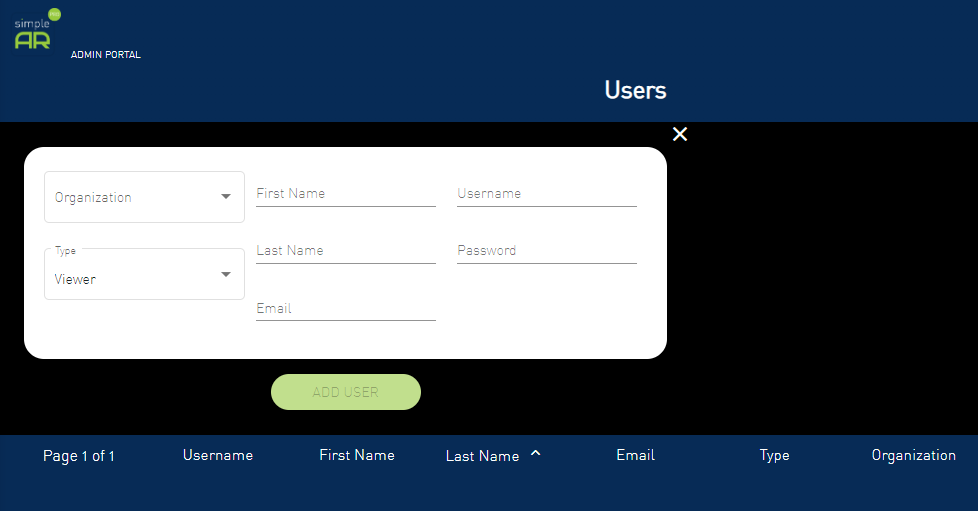
- Input the Organization, User Type, First Name, Last Name, Username, Password and Email Address for the user
Note
Please reference Global User Types and Privelages below.
Global User Role Types
| Role | Description | Add / Update Users | Delete Users | Create / Update Apps | Delete Apps | Access Apps | View Analytics |
|---|---|---|---|---|---|---|---|
ADMIN |
Has read / write on all resources | ||||||
CREATOR |
Has read / write on some resources | ||||||
VIEWER |
Has read on some resources |
Application Access
Accounts can be created globally for the Organization by an Organization Admin, but simpleAR Pro Application Developers also need to entitle users with Application Access via the Application Manager.
Update an Existing User
- To Edit an existing User, Select the Edit button
- In Edit mode, update the User Details
- To Remove an existing User, Select the Delete button
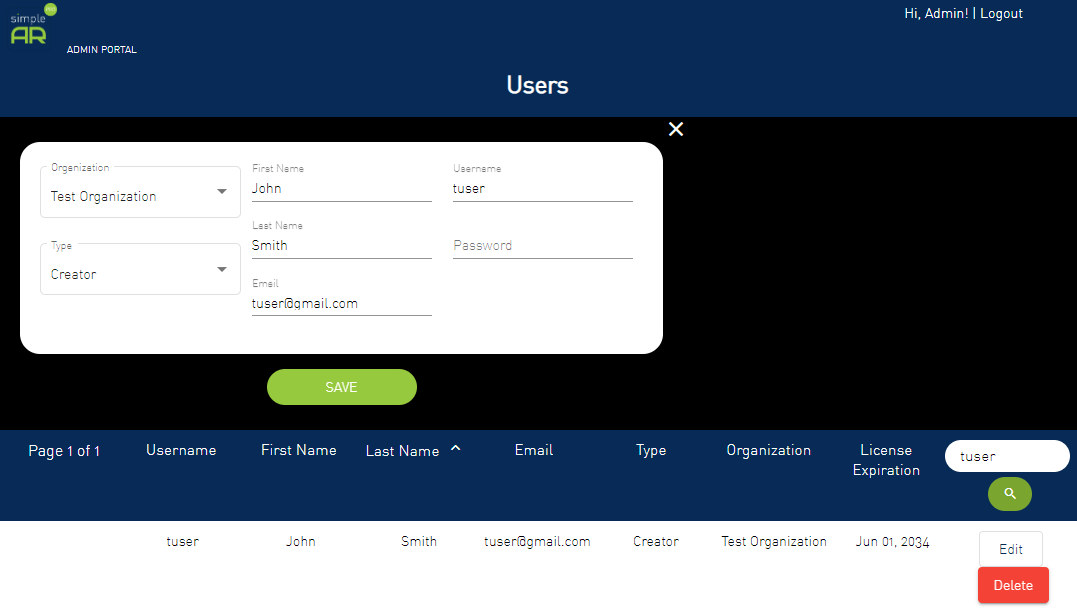
Password Updates
When updating a User's Information, the Password for the User is also updated. If the password is left blank, the previous password will remain for the edited User. Only Users with role Admin are permissioned to update a User's information.
Adding Users to Specific Applications
In addition to being added to the Organization, Users need to be added to each individual simpleAR Pro Application they're required to access.
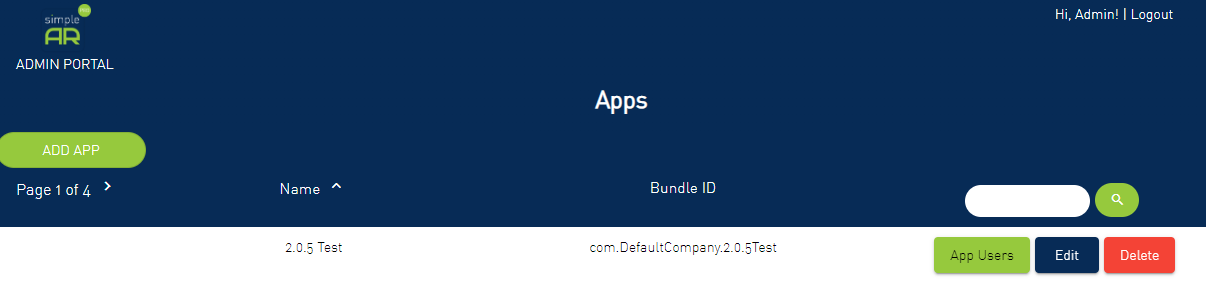
- To Add a User an existing App, Select the Apps button
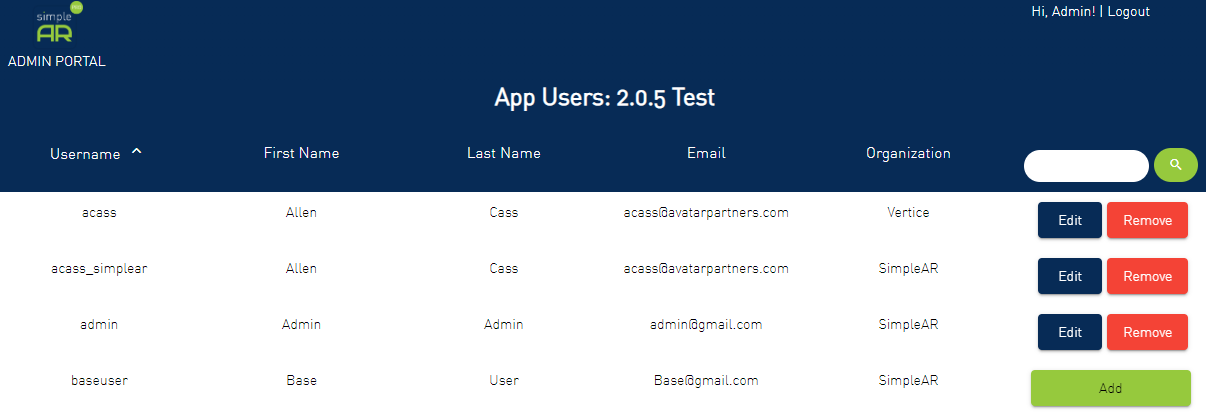
- Find the App you want to add them to and select App Users
- Click the Add button next to the user you want to add to the App
Note
Users can also be added as App Users to the App by Developers of simpleAR Pro Apps in the Organization via the App Manager.
Setting Up Custom Roles for Users
In addition to the Global User Roles defined for the Organization. There are app-specific Custom Roles that can be assigned to App Users.
Info
Custom Roles enable app developer to develop tiered access to certain features or content within the app based on the Custom Role. App-specific Custom Roles need to be implemented by the simpleAR Pro developer via the App Manager.
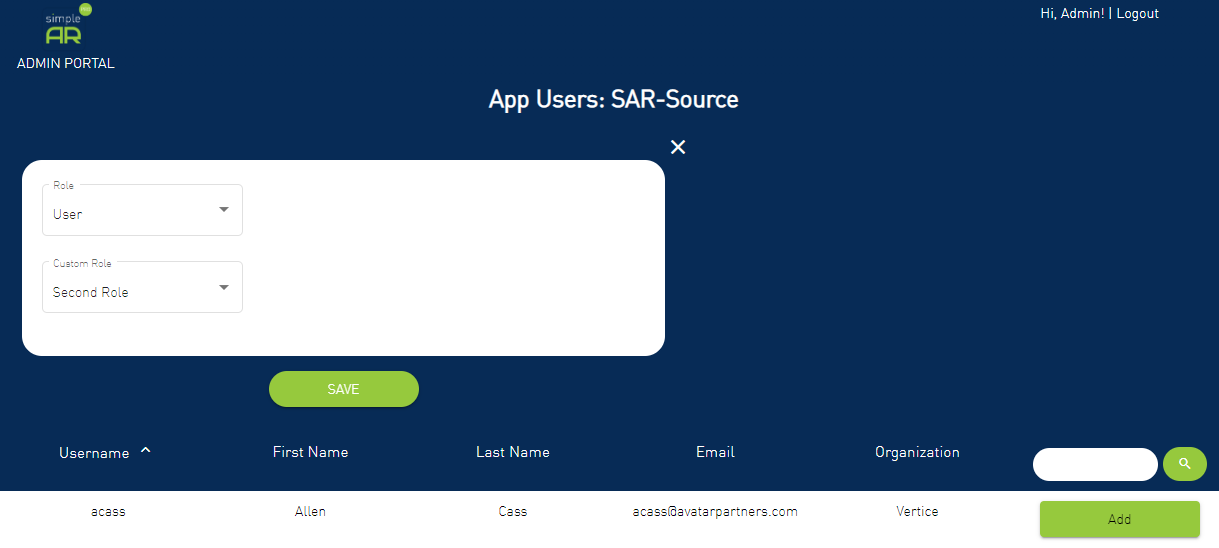
- To assign a Custom Role to an App User, select the Edit button next to the App User
- Select the Custom Role from the dropdown and select Save
Note
The User's Global User Role can also be overridden from this view via the Role dropdown.